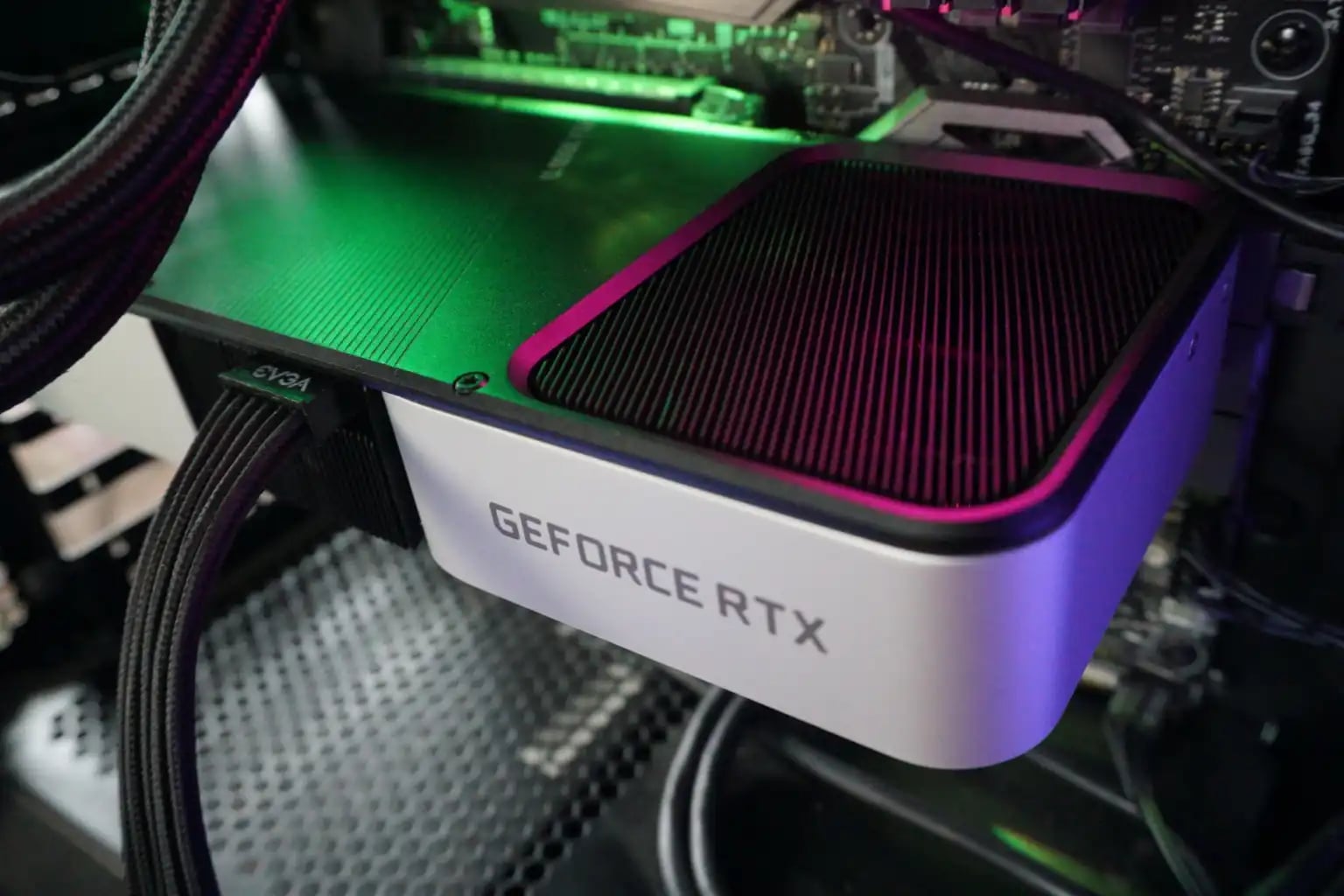
You pressed the button. The fans spun up, the lights came on, the drive activity flickered — and the monitor says there is no signal. Everything you have read tells you this is the moment a build has failed.
It usually is not. On a first build the overwhelmingly common cause is that the display cable went into the sockets on the motherboard's back panel instead of the ones on the graphics card, and the machine is working perfectly while sending its picture somewhere you are not looking.
Why there are two sets of sockets
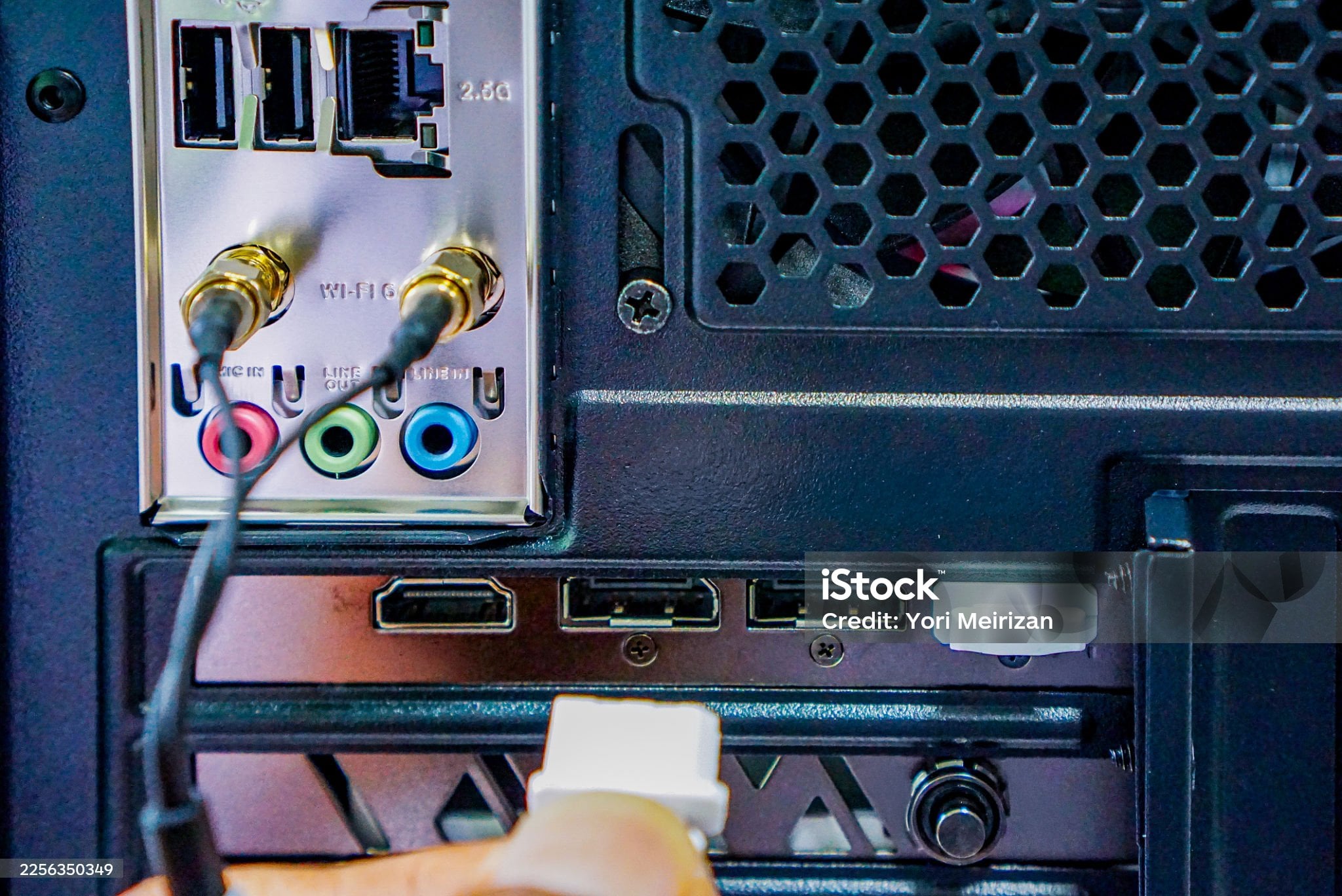
A desktop can produce a picture from two places. Many processors contain a small graphics engine of their own, and the board routes it to the display sockets on its back panel. A graphics card carries its own, far more capable, and routes it to the sockets on the card.
Both sets are physically present, both look identical, and they are a few centimetres apart at the back of the case. One of them is connected to something and one of them is not.
When a graphics card is installed, firmware almost always makes the card the primary output. The board's sockets then produce nothing — not because they are broken, but because nothing is being sent to them.
And there is a stronger version of the same situation. A large share of desktop processors have no integrated graphics at all — the ones sold specifically without it, and most of the high-core-count parts. On those, the board's display sockets are dead in every configuration. They are on the board because the board must serve every processor that fits its socket.
How to tell in ten seconds
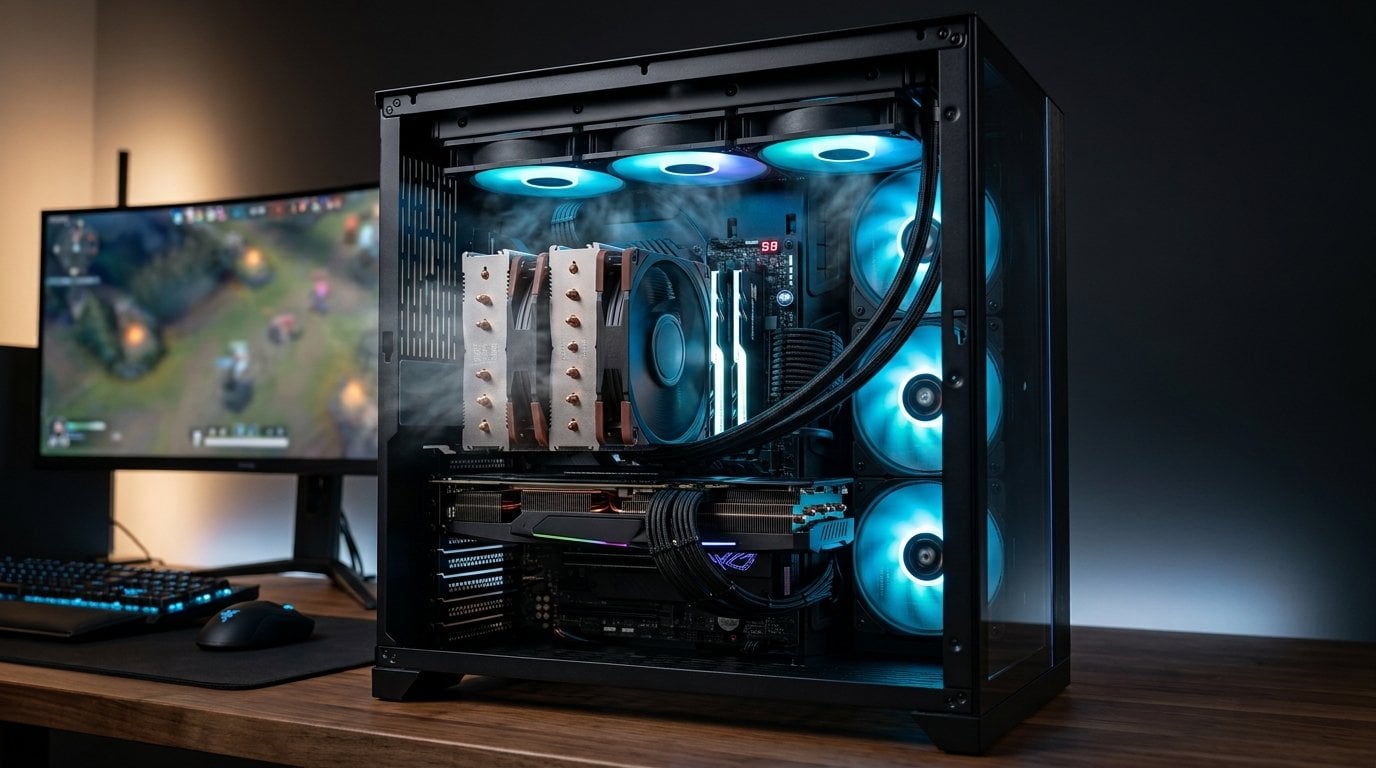
The card's sockets are the ones on the horizontal metal bracket lower down the back of the case, in line with the card itself. The board's are in the block of ports at the top, next to the network socket and the USB ports.
Move the cable to the card. If a picture appears, the build was never broken.
The rest of the ladder
If the cable was already in the card, work down this list in order. It is arranged by how often each one is the answer.
- The monitor's input source. Monitors do not always switch automatically, and a monitor sitting on the wrong input reports no signal exactly as if the cable were unplugged. Cycle through its inputs before touching the machine.
- The card's own power cables. A card that needs supplementary power and does not have it will often spin its fans and refuse to output. Check both that the plug is in the card and that it is fully seated — these connectors need more force than feels comfortable, and a plug that is nearly home behaves exactly like one that is not there.
- The memory. Modules that are not fully seated are the classic no-picture fault. They need firm pressure until the clip snaps up on its own. Reseat every module; then, if it still fails, try one module alone in the slot the manual specifies for a single stick — which is usually not the slot nearest the processor.
- The card itself. Reseat it in the slot, making sure the retention clip has engaged.
- The 8-pin processor power cable at the top of the board. It is easy to miss entirely, and a board without it will often light up and go no further.
The board is trying to tell you which one it is
Most boards made in the last several years carry a diagnostic display of some kind, and almost nobody looks at it on their first build.
The common form is four small lights in a row, labelled for processor, memory, graphics and boot device. Whichever one is lit when the machine stops is the stage it did not get past — and that turns the ladder above from a search into a single instruction. A memory light means reseat the memory; a graphics light means the card or its power.
Better boards carry a two-digit display instead, whose codes are listed in the manual. The manual is the point: the code means nothing without it, and it is the fastest diagnostic tool in the box.
If the board has neither, a small speaker connected to the front-panel header gives you beep codes, which is the oldest version of the same idea and still works.
What a genuinely dead build looks like
The ladder above assumes the machine is alive and quiet. It is worth knowing where that assumption stops, so you know when to stop working through it.
A build that has a real fault usually fails earlier and more visibly. Nothing happens at all when the button is pressed — no fans, no lights — which points at the supply, its switch, the wall socket, or the front-panel button wiring, and the quickest test is to briefly bridge the two power-switch pins on the board with a screwdriver, which bypasses the case's button entirely.
Or the machine starts, runs for a second or two, stops, and starts again in a loop. That is a board detecting something it cannot proceed with, and it is a different problem from a machine that runs steadily with no picture.
Or the diagnostic light for the processor stays lit and nothing else happens, which points at the processor's own power connector, the socket, or the firmware not recognising the chip.
None of those is the situation this article is about. If your fans are spinning steadily and the lights are on and the drive flickers, the machine has passed the stages that a dead build fails — and that is a strong signal that what you have is a display problem rather than a hardware failure.
When the board's sockets are the right ones
It would be wrong to leave you thinking the back-panel display outputs are useless. There are cases where they are exactly what you want:
- No graphics card yet — a build waiting for a card, running on the processor's own graphics, uses them by necessity.
- An extra monitor — the integrated graphics can drive additional displays alongside the card, once enabled in firmware. It is off by default on most boards and the setting has a name like multi-monitor or integrated graphics.
- Video encoding — some integrated engines are very good at it, and software that can use them wants the integrated graphics enabled.
- Diagnosis — if a machine will not display through the card, moving to the board's socket tells you whether the card or something upstream is the problem. That only works if the processor has integrated graphics, which is worth knowing before you rely on it.
What we would not buy
A processor without integrated graphics for a first build, unless the saving is substantial and you have a spare card. That small engine is worth very little while everything works and is worth a great deal on the evening a card dies, because it is the difference between diagnosing the machine and guessing at it.
And a board chosen for its rear display outputs when a card is going in on day one. Those sockets will not carry a picture in that configuration, and the specification line describing them is not about your build.
How this was put together
The output-routing behaviour, the firmware settings that change it, and the diagnostic light and code tables are documented in the board manuals themselves, which is also where the single-module memory slot and the beep codes are specified. Which processors include integrated graphics is stated in the processor vendors' own model listings. The ordering of the ladder reflects what actually turns out to be the cause in first builds rather than what is most technically interesting.
The observation this article is built on is ours: a machine whose fans spin and whose lights work has already passed the tests that a genuinely dead build fails, so the fault is far more likely to be in where the picture is going than in whether it is being made.